
Audio References: Play Recordings While Labeling Images
 Ira Soldatova
Attach voice notes, machine sounds or animal calls to images in Supervisely and play them in the Audio panel while you label. Set up with the Python SDK.
Supervisely can now attach audio recordings to images, called audio references, and play them in the Image Labeling Toolbox. Use it when the right label depends on a sound: a machine's knock, a bird call or an inspector's voice note. The annotator plays the recording in the Audio panel next to the image, instead of looking for the file somewhere else.
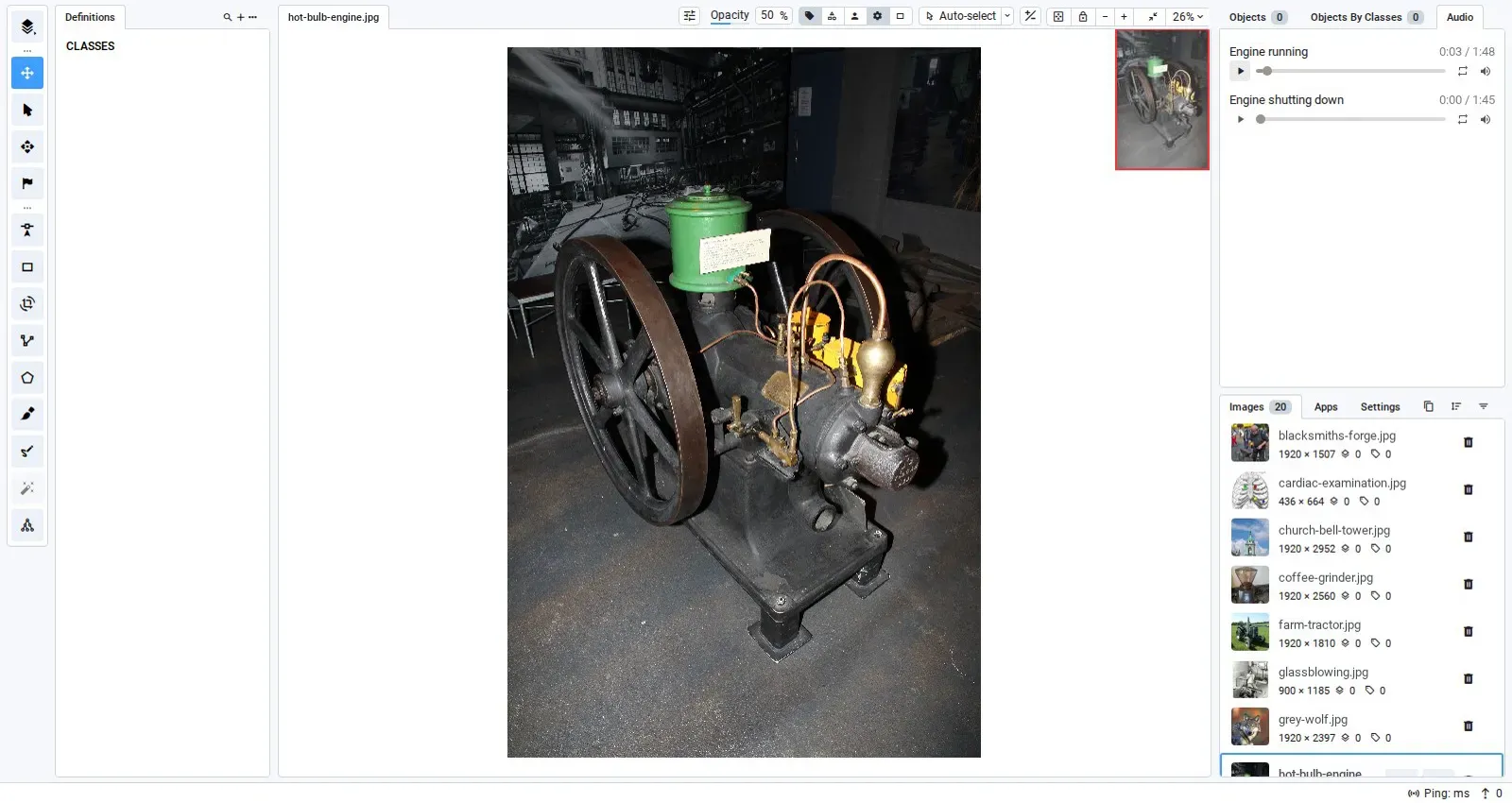 A photo of a hot bulb engine with two recordings in the Audio panel: the engine running and shutting down
Prefer the full reference? Audio references in the Supervisely docs covers the Audio panel, where the recordings are stored and how to attach them.
What are audio references?
An audio reference is a recording linked to an image. When you open the image, its recordings appear in the Audio tab of the right sidebar, next to Objects and Objects By Classes.
Each recording has a player with its name, its length, a seek bar, and loop and volume controls. An image can have several recordings. The panel always shows the recordings of the image that is open, and stays empty for an image with no audio.
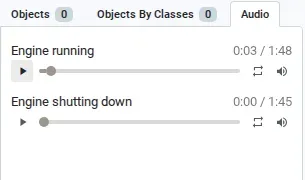 Each recording gets its own player with a seek bar, loop and volume
When does a sound decide the label?
Audio references help when the sound carries the evidence and the image carries the label.
-
Machine condition inspection. A photo shows the machine's parts, and a recording of it running shows its condition. Knocking, misfiring or a worn bearing is heard, not seen. With the recording attached, the annotator plays it and tags the photo
normalorfaultywithout leaving the toolbox. -
Wildlife and bird surveys. Species that look alike often sound different. With the call attached to the photo, the annotator can confirm the species before labeling it.
-
Field inspection notes. An inspector photographs a defect and dictates what they found. The voice note stays with the photo, so whoever labels it later hears the inspector's own description.
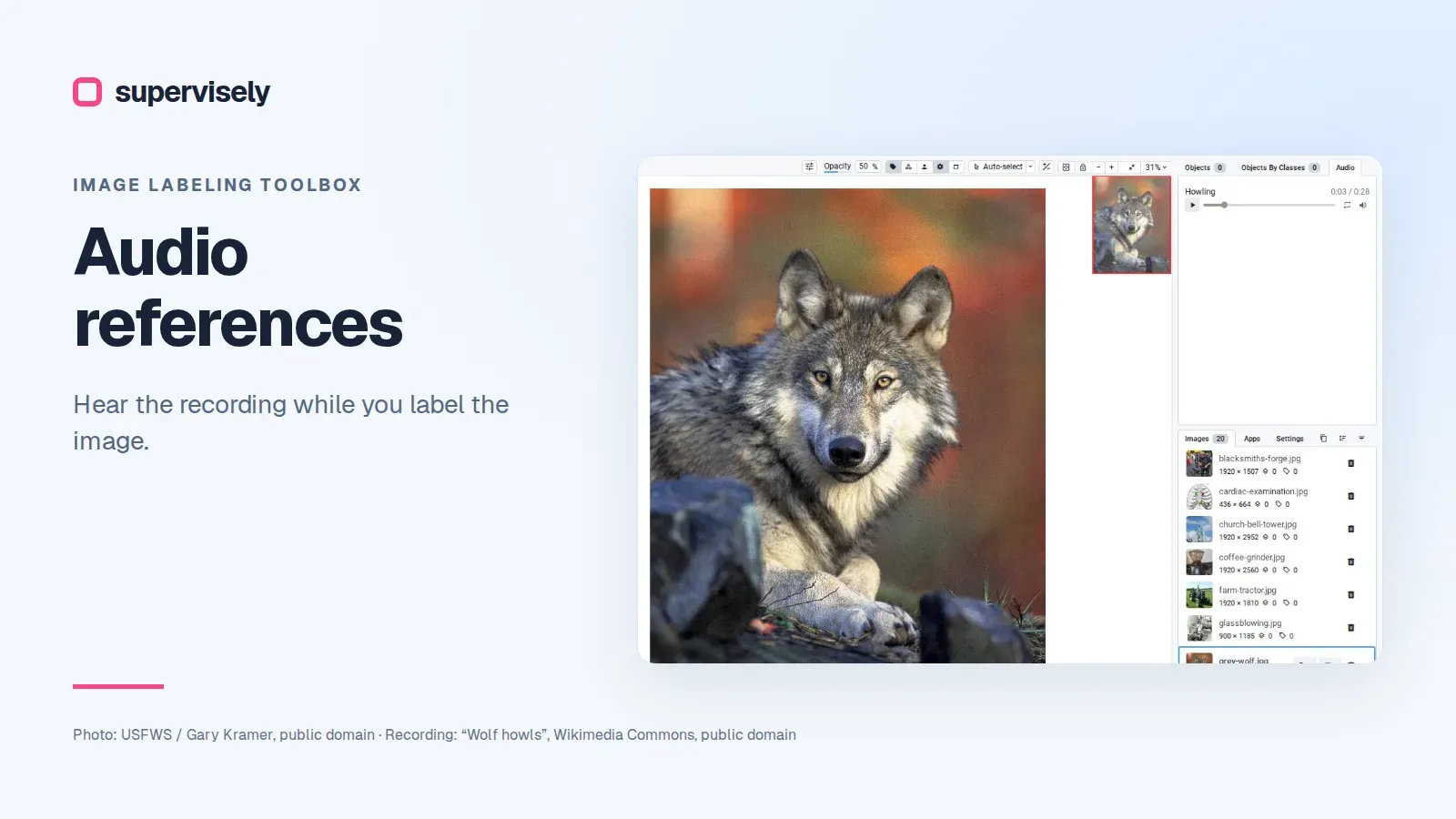
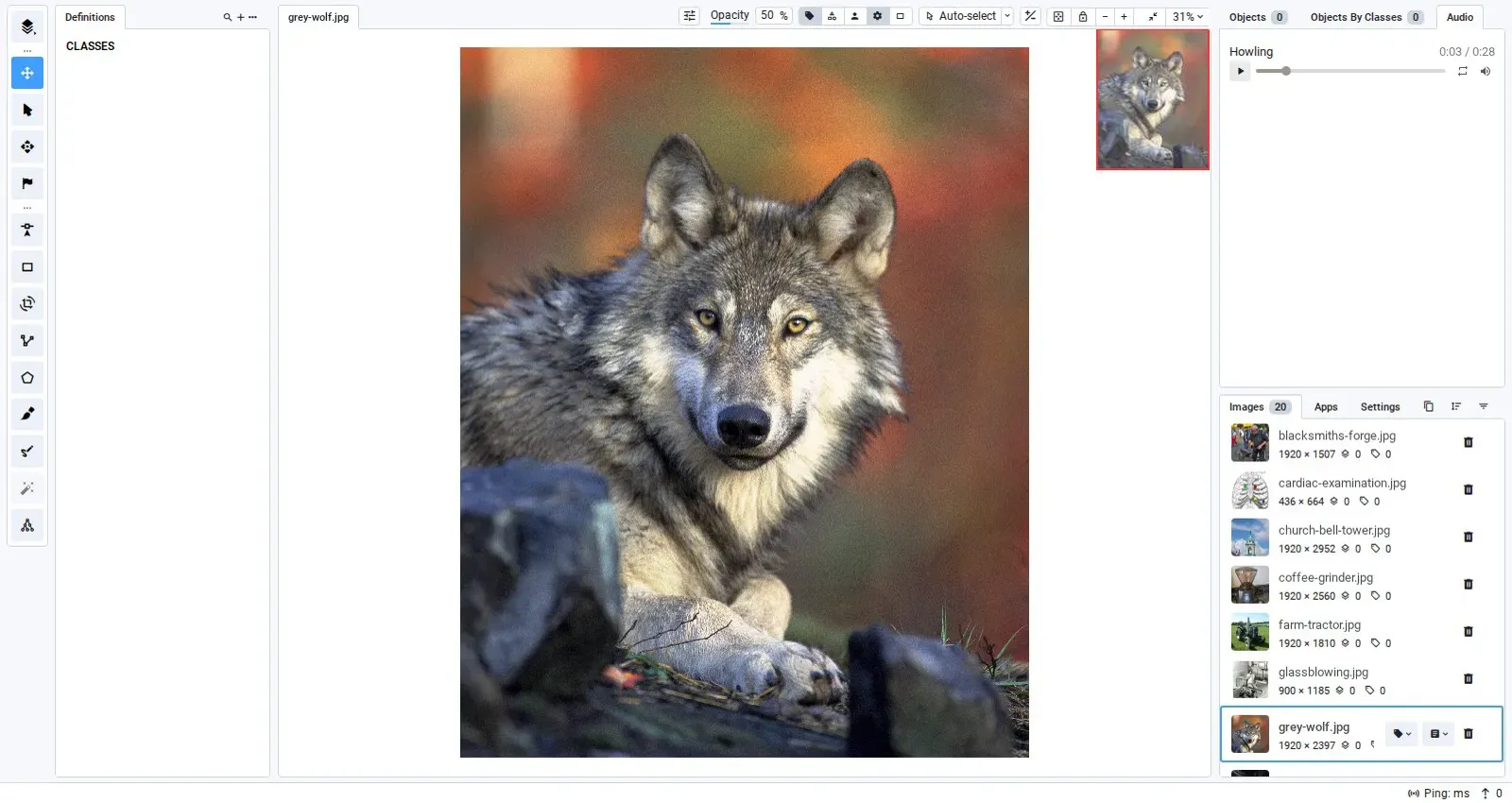 A grey wolf photo with its Howling recording playing in the Audio panel
Each recording keeps the licence of its source. Many public datasets allow their media for research only, so check the licence of a recording before you attach it.
Audio references vs audio annotation: which one do you need?
Audio references only help decide the image's label. The recording gets no figures or tags of its own, and it is not included in annotation exports. If the sound itself is what you label, create an Audio project and use audio annotation instead.
| Situation | What to use |
|---|---|
| The label goes on the image, and a recording helps decide it | Audio references in an Images project |
| The label goes on the sound: speech turns, a knock or a call as time segments | An Audio project with audio annotation |
| The recordings have to move with the project to another instance | Upload them there and attach them again: the project carries only links |
Where are the recordings stored?
The image keeps only the URL of each recording. The file itself lives outside the project, normally in Team Files, and the player streams it from there. Two things follow from that:
- If you delete the file from Team Files, its player stops working.
- Copying or exporting a project carries the links, not the recordings. A project imported into a different Supervisely instance still points at the instance the audio came from, so upload the recordings there and attach them again.
How to set up a project with audio references
- Click New → New project wizard and choose Images as the type of project.
- Under Labeling interface, select Audio references. Hover the
?icon next to it for a short description. - Click Create, import your images and attach the recordings with the Python SDK, as shown below.
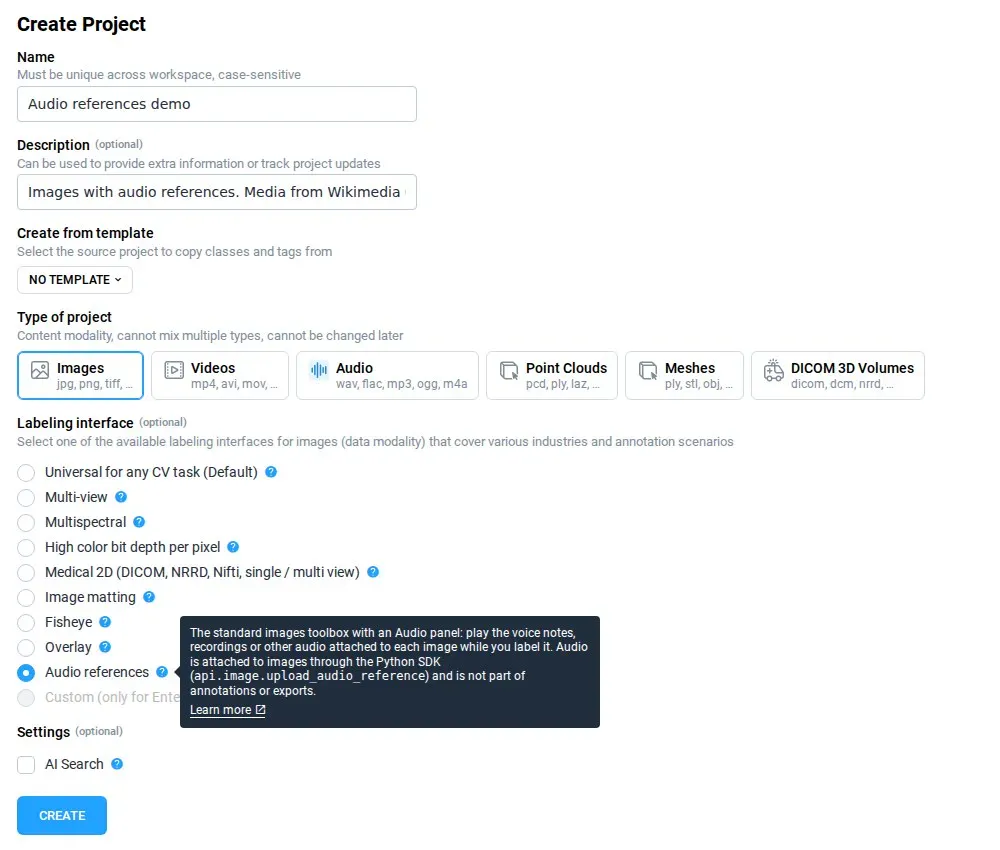 Create an Images project and choose Audio references under Labeling interface
The project opens in the standard Image Labeling Toolbox, with the Audio panel in its sidebar. An existing image project needs no new interface: attach audio to its images, and the panel plays it.
How to attach audio with the Python SDK
You can't attach audio from inside the labeling toolbox. It is done with the Supervisely Python SDK, while importing images or afterwards. One call uploads a local file to Team Files and attaches it to an image:
import supervisely as sly

api = sly.Api.from_env()

api.image.upload_audio_reference(
    id=3212008,          # image ID
    team_id=8,           # the team whose Team Files store the audio
    path="/home/admin/audio/operator-note.mp3",
    name="Operator note",  # shown next to the player
)
The file goes to /audio-references/<image ID>/ in Team Files unless you pass remote_path. For a recording that is already hosted, api.image.add_audio_reference attaches it by URL, and api.image.get_audio_references reads back what an image has. The developer portal tutorial covers these calls, attaching audio at import time, and export and re-import.
Audio references need a Supervisely instance 6.17.25 or newer, and attaching audio needs Python SDK 6.74.36 or newer.
Want to label sound evidence together with your images? Try Supervisely or contact us. The Supervisely docs have the full reference.
Media from Wikimedia Commons, shown in screenshots of the Supervisely interface: photos “Hot bulb diesel engine Forum Marinum 1.JPG” by MKFI and “Grey Wolf Portrait.jpg” by USFWS / Gary Kramer, public domain; recordings “WWS Hotbulbengineworking.ogg” and “WWS Hotbulbenginestopping.ogg” by Work With Sounds / Torsten Nilsson, CC BY 4.0; “Wolf howls.ogg”, public domain.
Frequently asked questions
What are audio references in Supervisely?
Recordings linked to an image, such as a voice note or the sound of a running machine. The Image Labeling Toolbox plays them in the Audio panel next to the image while you label it.
Are audio references included in annotation exports?
No. The audio is not part of the annotation and gets no labels. The image keeps only the link to each recording, and the audio files stay where they were uploaded, normally in Team Files.
Can I attach audio from the labeling toolbox?
No. Audio is attached with the Supervisely Python SDK, while importing images or afterwards. The simplest call is api.image.upload_audio_reference, which uploads a local file to Team Files and attaches it to the image.
Can one image have several recordings?
Yes. The Audio panel lists every recording attached to the open image, each with its own player.
What happens to the audio when I move a project to another instance?
The project carries the links, not the recordings, so they keep pointing at the instance the audio came from. Upload the recordings to the new instance and attach them again.
Which versions support audio references?
A Supervisely instance 6.17.25 or newer. Attaching audio needs the Supervisely Python SDK 6.74.36 or newer.